How to Use the Find-Script Cmdlet in PowerShell
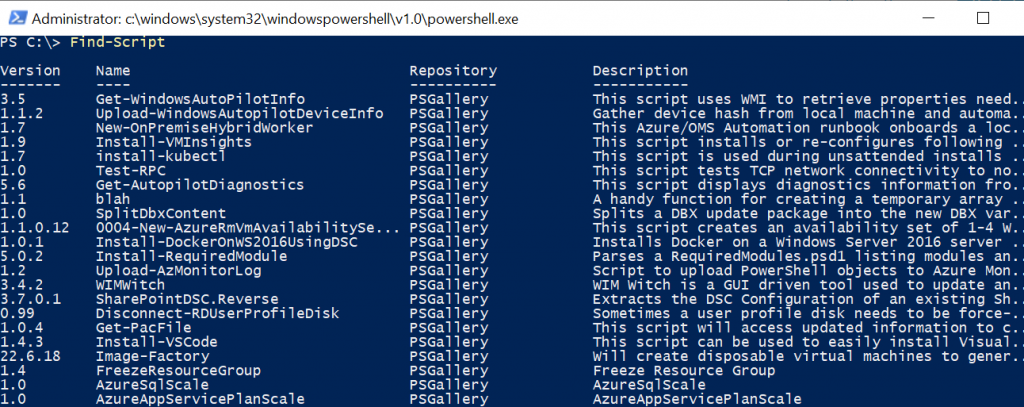
The Find-Script cmdlet in PowerShell is designed to locate the scripts in the registered repositories, such as PSGallary. It allows users to search for available scripts using various parameters, including name, version, and repository.
This command is available in the PowerShellGet module.
The Find-Script command without any parameters finds all available scripts in registered repositories.
Find-Script
In this article, we will cover the following topics:
- How to find all available scripts.
- How to find a script by name.
- How to locate a script by name, and version.
PowerShell Find-Script
The Find-Script cmdlet enables users to search for scripts across registered repositories. You can refine your search by using parameters such as:
- Name: Specify the script name.
- RequiredVersion: Specify the exact version of the script.
- MinimumVersion or MaximumVersion: Define a version range.
Syntax
Find-Script
    [[-Name] <String[]>]
    [-MinimumVersion <String>]
    [-MaximumVersion <String>]
    [-RequiredVersion <String>]
    [-AllVersions]
    [-IncludeDependencies]
    [-Filter <String>]
    [-Tag <String[]>]
    [-Includes <String[]>]
    [-Command <String[]>]
    [-Proxy <Uri>]
    [-ProxyCredential <PSCredential>]
    [-Repository <String[]>]
    [-Credential <PSCredential>]
    [-AllowPrerelease]
    [<CommonParameters>]
Let’s understand the Find-Script cmdlet with an example to search the script.
Find all Available Scripts
To list all available scripts in registered repositories, use the Find-Script cmdlet without any parameters.
Find-Script | Select-Object -First 10
In the above PowerShell script,
Find-Script searches for all scripts in registered repositories and pipes the result to the Select-Object cmdlet. This Select-Object -First 10 limits the results to the first 10 scripts.
Find a Script by Name
To locate a specific script, use the Name parameter:
Find-Script -Name "SpeedTest"
In the above PowerShell script, Find-Script uses the Name parameter for the script name “SpeedTest” and returns the script information.
Find Script by Required Version and Name
To find a specific version of a script, combine the Name and RequiredVersion parameters:
Find-Script -Name "SpeedTest" -RequiredVersion 2.0 -Repository PSGallery
In the above PowerShell script, the Find-Script uses the Name parameter to specify the script name as “SpeedTest”.
The RequiredVersion parameter limits the search to version 2.0 of the script. -Repository PSGallery searches within the “PSGallery” repository.
Conclusion
The Find-Script cmdlet is a powerful tool for locating scripts in registered repositories.
- Use Find-Script without parameters to list all scripts.
- Use the Name parameter to locate specific scripts.
- Combine Name and RequiredVersion for precise searches.