How to Send Output to a File in PowerShell
PowerShell offers various methods to write output to a file.
Method 1: Using the Out-File Cmdlet to send output a file
Get-Process | Out-File -FilePath myprocess.txt
This example saves the output of the command to the file.
Method 2: Using the Add-Content cmdlet to write output to a file
Get-Process | Add-Content -Path myprocess.txt
This example writes the output to a file.
Method 3: Append Output to a File using >> operator
Get-Process >> C:\temp\myprocess.txt
This example appends the output to an existing file instead of overwriting it using the >> operator.
Method 4: Using the redirection operator > to save the output to a file
Get-Process > C:\temp\myprocess.txt
This example redirects the output of a command to a file using the > operator.
All of these methods can be utilized to write output to a file or append an output to a file in PowerShell.
The following examples show how to use each of the methods.
Using the Out-File Cmdlet to Send Output to a File
The Out-File cmdlet allows you to send the output to a file directly.
The following PowerShell script shows how to use it with syntax.
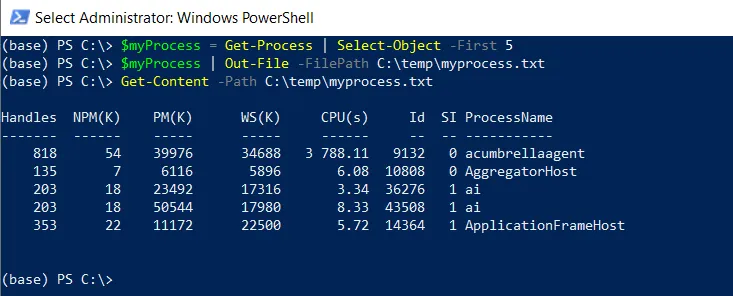
# Select the first 5 process
$myProcess = Get-Process | Select-Object -First 5
# Saves the process output to a file
$myProcess | Out-File -FilePath C:\temp\myprocess.txt

# Read the content of the file
Get-Content -Path C:\temp\myprocess.txt
In this example, the $myProcess variable stores the first 5 processes retrieved using the Get-Process cmdlet. The $myProcess variable pipes to the Out-File cmdlet to save the output to the file named myprocess.txt.
The Get-Content cmdlet is used to read the content of the file named myprocess.txt and display it on the console directly.
Using the Add-Content cmdlet to Save Output to a File
Another way to write output to a file is by using the Add-Content cmdlet.
The following example shows how to use it with syntax.
Get-Process | Add-Content -Path C:\temp\myprocess.txt
In this example, the Get-Process command retrieves the list of all running processes and pipes the output to the Add-Content to write to a file named myprocess.txt.
This command will also append the output to an existing file. If an existing file contains the information, it appends the output to a file.
Append Output to a File using >> operator
You can use the >> operator to append the output to an existing file instead of overwriting it.
The following example shows how to use it with syntax.
Get-Process >> C:\temp\myprocess.txt
The output of the above PowerShell script writes the output of a command to a file named myprocess.txt.
Using the Redirection Operator > to Save the Output to a File
You can use the > operator to save the output of a command to a file.
The following example shows how to use it with syntax.
Get-Process > C:\temp\myprocess.txt
The output of the above PowerShell script writes the output of a Get-Process command to a file named myprocess.txt.
Conclusion
I hope the above article on how to write output to a file in PowerShell is helpful to you.
You can send output to a file using the Out-File command or >> operator or the Add-Content cmdlet. The Add-Content command also appends output to a file.