How to Get File Hash in PowerShell
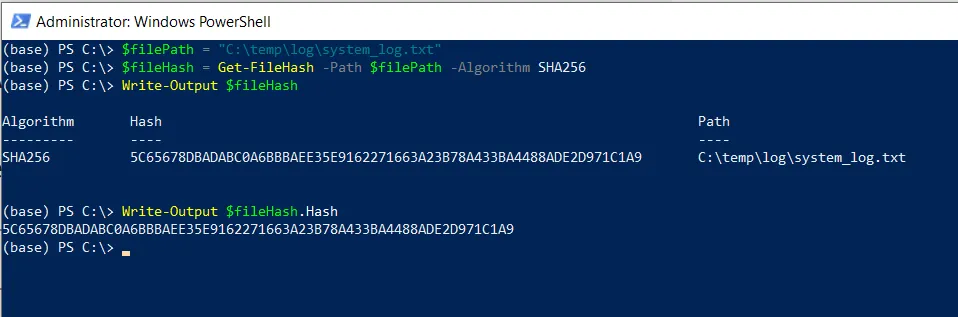
To get file hash in PowerShell, you can use the Get-FileHash cmdlet. This command provides different hash algorithms such as SHA1, SHA256, SHA384 and MD5.
Get File Hash Using Get-FileHash in PowerShell
You can get file hash in PowerShell by using the Get-FileHash cmdlet. The Get-FileHash command uses the -Algorithm parameter to specify the algorithm to calculate the hash value of the specified file.
# specify the path to the file
$filePath = "C:\temp\log\system_log.txt"

# Get the hash of the file

$fileHash = Get-FileHash -Path $filePath -Algorithm SHA256

# Output the file hash
Write-Output $fileHash.Hash
In this PowerShell script, the $filePath variable stores the path to the file for which you want to calculate the hash.
The Get-FileHash cmdlet calculates the hash of the file specified by $filePath using the algorithm SHA256 and stores the result in the $fileHash variable.
Finally, we can output the hash value of the file using the Write-Output cmdlet.
After running the above script, PowerShell will output the hash value of the specified file.
Conclusion
I hope the above article on how to get the hash value of the file in PowerShell is helpful to you.
Related Articles
File Information & Properties
- PowerShell Get File Properties - File metadata
- PowerShell Get File Extension - Extract extension
- PowerShell Get File Version - Version information
- PowerShell Get File Owner - File ownership
- PowerShell Get MD5 Hash - MD5 hash calculation
File Management Operations
- PowerShell List Files - List directory contents
- PowerShell Directory Listing - Navigate directories
- PowerShell Delete All Files - Delete files
- PowerShell Rename Files - Rename files in bulk
- PowerShell Count Files - Count directory contents
Data Selection & Filtering
- PowerShell Select-Object - Select file properties
- PowerShell Where-Object - Filter files by criteria
- PowerShell ForEach-Object - Process each file
- PowerShell Get-ChildItem Filter - Advanced filtering
Date & Time Operations
- PowerShell DateTime Format - Format date/time
- PowerShell List Files By Date - Sort by date
- PowerShell Compare File Dates - Date comparison
Display & Output
- PowerShell Write-Output - Display output
- PowerShell Format Table - Format output
- PowerShell Output to File - Write to files
Control Flow & Logic
- PowerShell If-Else Statement - Conditional logic
- PowerShell For Loops - Loop through files
- PowerShell Try-Catch - Error handling
Variables & Collections
- PowerShell Variables - Store file data
- PowerShell Arrays - Work with file arrays
- PowerShell Hashtables - Store mappings
- PowerShell Add-Member - Add custom properties
Output & Export
- PowerShell Export CSV - Export to CSV
- PowerShell Import CSV - Import from CSV
File Content Operations
- PowerShell Get-Content - Read file contents
Functions & Automation
- PowerShell Functions - Create reusable functions
- PowerShell Measure-Object - Calculate statistics
Storage & Disk Operations
- PowerShell Get Folder Size - Calculate folder size
- PowerShell Get Partition Size - Disk operations
Comprehensive Guides
- Complete PowerShell Guide - Full PowerShell reference
- Complete PowerShell Tutorial - Comprehensive course