How to Get RAM Information in PowerShell
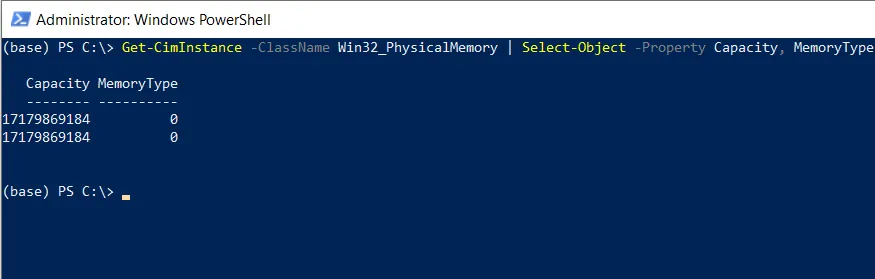
You can use the Get-CimInstance cmdlet in PowerShell to retrieve RAM details by querying the Win32_PhysicalMemory class.
The following method shows how you can do it with syntax.
Method 1: Get RAM details
Get-CimInstance -ClassName Win32_PhysicalMemory | Select-Object -Property Capacity, MemoryType
This example will return information about RAM including the Capacity and MemoryType of each RAM module.
The following example shows how you can use this method.
How to Get RAM Details in PowerShell
The following PowerShell script will retrieve RAM details.
Get-CimInstance -ClassName Win32_PhysicalMemory | Select-Object -Property Capacity, MemoryType
After running this script, it will display the Capacity and MemoryType of each RAM module.
Get Total RAM in Gigabytes
You can modify the above PowerShell script to get the total capacity of all RAM modules in gigabytes (GB), you can use the Measure-Object cmdlet.
(Get-CimInstance -ClassName Win32_PhysicalMemory | Measure-Object -Property Capacity -Sum).Sum / 1GB
Output:
PS C:\> (Get-CimInstance -ClassName Win32_PhysicalMemory | Measure-Object -Property Capacity -Sum).Sum / 1GB
32
This script calculates the sum of the Capacity property for all RAM modules and converts it from bytes to gigabytes (GB).
Get Detailed RAM Information
To get more detailed information about your RAM:
Get-CimInstance -ClassName Win32_PhysicalMemory | Select-Object Manufacturer, PartNumber, SerialNumber, @{N='Capacity(GB)';E={$_.Capacity/1GB}}, Speed
This provides manufacturer, part number, serial number, capacity, and speed of each RAM module.
Conclusion
I hope the above article on getting RAM information in PowerShell is helpful to you.
Related Articles
WMI & CIM Operations
- PowerShell Get-WmiObject - Query WMI information
- PowerShell Get-CimInstance - Query system information via CIM
- PowerShell Win32 Classes - WMI class reference
System Monitoring
- PowerShell Get-Process - Process information
- PowerShell Get-Memory-Usage - Memory performance metrics
- PowerShell Get-CPU-Usage - CPU performance data
- PowerShell Get-Service - Service information
Data Selection & Filtering
- PowerShell Select-Object - Select RAM properties
- PowerShell Where-Object - Filter memory modules
- PowerShell ForEach-Object - Process RAM modules
Data Aggregation & Calculation
- PowerShell Measure-Object - Calculate memory totals
- PowerShell Group-Object - Group by memory type
Display & Formatting
- PowerShell Format Table - Format RAM output
- PowerShell Output Table - Create RAM data tables
- PowerShell Format List - List format display
Control Flow & Logic
- PowerShell If-Else Statement - Conditional memory checks
- PowerShell Switch Statement - Switch on memory size
- PowerShell Try-Catch - Error handling
- PowerShell For Loops - Loop through memory modules
Variables & Collections
- PowerShell Variables - Store RAM data
- PowerShell Arrays - Work with memory arrays
- PowerShell Hashtables - Store memory configuration
- PowerShell Add-Member - Add custom memory properties
Output & Export
- PowerShell Output to File - Export RAM information
- PowerShell Export CSV - Export to CSV
- PowerShell Import CSV - Import memory data
String & Number Operations
- PowerShell Strings - String manipulation for RAM data
- PowerShell DateTime Format - Format timestamps
Functions & Automation
- PowerShell Functions - Create memory monitoring functions
- PowerShell Measure-Object - Calculate memory statistics
Advanced Monitoring
- PowerShell Get-Partition-Size - Storage information
- PowerShell Get-CPU-Usage-By-Process - Per-process CPU
Comprehensive Guides
- Complete PowerShell Guide - Full PowerShell reference
- Complete PowerShell Tutorial - Comprehensive course