Use PowerShell to Find Network Adapter Status
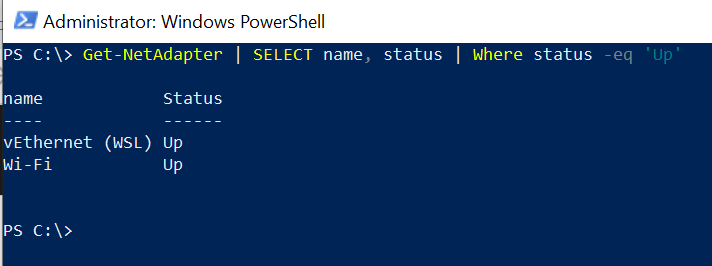
To show network adapter status using PowerShell, use the Get-NetAdapter cmdlet. The Get-NetAdapter command retrieves the information about network adapters in the system. It has a status parameter for each network adapter that displays the status information.
In this article, we will discuss how to use PowerShell to show network adapter status using the Get-NetAdapter command and get the status for a specific network adapter.
How to Find Network Adapter Status using PowerShell
Use the Get-NetAdapter command in PowerShell to show the network adapter status. The status property associated with each of the network adapters contains status information such as “Up”, “Disconnected”, and “Disabled”.
Get-NetAdapter | SELECT name, status | Where status -eq 'Up'
In the above PowerShell script, the Get-NetAdapter cmdlet returns a list of all network adapters on the system and pipes them into the Select command to select the name, and status properties and display the adapter where status is equal to up.
How to Show the Status of a Specific Network Adapter in PowerShell
To show the status of a specific network adapter in PowerShell, use the Get-NetAdapter command. It has a -Name parameter to specify the network adapter.
Get-NetAdapter -Name Ethernet | Select-Object Name, Status
In the above PowerShell script, the Get-NetAdapter command uses the -Name parameter to retrieve the details of a specific network adapter named “Ethernet” and show its name and status.
PS C:\> Get-NetAdapter -Name Ethernet | Select-Object Name, Status
Name     Status
----     ------
Ethernet Disconnected


PS C:\>
Conclusion
I hope the above article on how to show network adapter status using the PowerShell Get-NetAdapter command is helpful to you.
Related Articles
Network Adapter Information
- PowerShell Get-NetAdapter - Get network adapter details
- PowerShell Network IP Address - Get IP addresses
- PowerShell Network Driver Version - Get driver info
- PowerShell Network Configuration - Complete network config
Data Selection & Filtering
- PowerShell Select-Object - Select properties
- PowerShell Where-Object - Filter by status
- PowerShell ForEach-Object - Process adapters
- PowerShell Measure-Object - Calculate statistics
Display & Formatting
- PowerShell Format Table - Format output
- PowerShell Output Table - Create tables
- PowerShell Format List - List format display
Control Flow & Logic
- PowerShell If-Else Statement - Conditional logic
- PowerShell Switch Statement - Switch-based logic
- PowerShell Try-Catch - Error handling
- PowerShell For Loops - Loop through adapters
Variables & Collections
- PowerShell Variables - Store adapter data
- PowerShell Arrays - Work with adapter arrays
- PowerShell Hashtables - Store configuration
- PowerShell Add-Member - Add custom properties
Output & Export
- PowerShell Output to File - Export status data
- PowerShell Export CSV - Export to CSV
- PowerShell Import CSV - Import configuration
String Operations
- PowerShell Strings - String manipulation
- PowerShell Replace Strings - Text replacement
System Monitoring
- PowerShell Get-Process - Process information
- PowerShell Get-Service - Service status
- PowerShell Get-NetIPAddress - IP configuration
- PowerShell Get-NetIPConfiguration - Network config
Functions & Automation
- PowerShell Functions - Create monitoring functions
- PowerShell Group-Object - Group by status
- PowerShell Measure-Object - Count adapters
Comprehensive Guides
- Complete PowerShell Guide - Full PowerShell reference
- Complete PowerShell Tutorial - Comprehensive course