How to List Files by Date in PowerShell
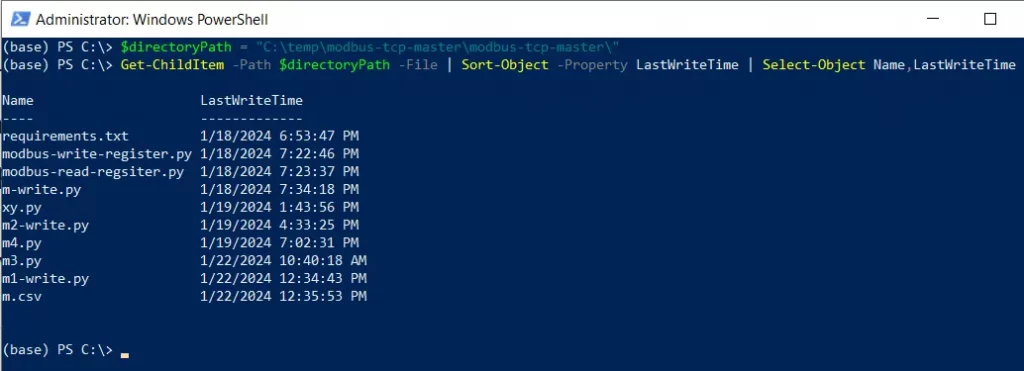
Use the Get-ChildItem cmdlet in PowerShell along with Sort-Object to list files by date. You can sort files by creation date, last modified date, or last access date.
The following methods can be used to list files by date in PowerShell.
Method 1: List files sorted by last modified date (newest first)
Get-ChildItem -Path "C:\temp\log" | Sort-Object LastWriteTime -Descending
This example lists all files sorted by last modified date with the newest files first.
Method 2: List files sorted by creation date
Get-ChildItem -Path "C:\temp\log" | Sort-Object CreationTime -Descending
This example lists all files sorted by creation date.
Method 3: List files sorted by last access date
Get-ChildItem -Path "C:\temp\log" | Sort-Object LastAccessTime -Descending
This example lists all files sorted by last access date.
The following examples show how to use these methods.
List Files Sorted by Last Modified Date
To list files sorted by last modified date in PowerShell, you can use the Get-ChildItem cmdlet along with Sort-Object.
The following example shows how to do this with syntax.
# Specify the directory path
$directoryPath = "C:\temp\log"

# List files sorted by last modified date (newest first)
Get-ChildItem -Path $directoryPath | Sort-Object LastWriteTime -Descending
In this PowerShell script, the Get-ChildItem cmdlet retrieves all files from the specified directory. The result is piped to Sort-Object which sorts the files by the LastWriteTime property in descending order (newest first).
List Files Sorted by Creation Date
To sort files by creation date, use the CreationTime property.
# Specify the directory path
$directoryPath = "C:\temp\log"

# List files sorted by creation date (newest first)
Get-ChildItem -Path $directoryPath | Sort-Object CreationTime -Descending
List Files Sorted by Date (Oldest First)
To list files with the oldest first, remove the -Descending parameter.
# Specify the directory path
$directoryPath = "C:\temp\log"

# List files sorted by last modified date (oldest first)
Get-ChildItem -Path $directoryPath | Sort-Object LastWriteTime
List Files Modified After a Specific Date
To list files that were modified after a specific date, you can use the Where-Object cmdlet.
# Specify the directory path
$directoryPath = "C:\temp\log"

# Specify the date
$date = Get-Date "2024-01-01"

# List files modified after the specified date
Get-ChildItem -Path $directoryPath | Where-Object { $_.LastWriteTime -gt $date }
In this example, the Where-Object cmdlet filters the files to show only those that were modified after January 1, 2024.
List Files Modified in the Last 7 Days
To list files that were modified in the last 7 days, you can calculate the date range.
# Specify the directory path
$directoryPath = "C:\temp\log"

# Calculate the date 7 days ago
$dateLimit = (Get-Date).AddDays(-7)

# List files modified in the last 7 days
Get-ChildItem -Path $directoryPath | Where-Object { $_.LastWriteTime -gt $dateLimit }
Conclusion
I hope the above article on listing files by date in PowerShell is helpful to you.
Related Articles
File Management Operations
- PowerShell List Files - List directory contents
- PowerShell Delete All Files - Delete files in bulk
- PowerShell Delete Files Matching Pattern - Pattern-based deletion
- PowerShell Delete File If Exists - Conditional deletion
- PowerShell Rename Files - Rename files in bulk
- PowerShell Count Files - Count directory contents
Date & Time Operations
- PowerShell DateTime Format - Format date/time
- PowerShell Compare File Dates - Date comparison
- PowerShell Change Created Date - Modify creation date
- PowerShell Change Last Modified Date - Modify modification date
- PowerShell Subtract Dates - Date arithmetic
- PowerShell Subtract Time - Time calculations
Directory Operations
- PowerShell Directory Listing - Navigate directories
- PowerShell Get Folder Size - Calculate folder size
- PowerShell Get Folder Creation Date - Folder timestamps
Data Selection & Filtering
- PowerShell Select-Object - Select file properties
- PowerShell Where-Object - Filter files by criteria
- PowerShell ForEach-Object - Process each file
- PowerShell Get-ChildItem Filter - Advanced filtering
- PowerShell Get-ChildItem Regex - Regex filtering
Data Calculation & Aggregation
- PowerShell Measure-Object - Calculate statistics
- PowerShell Group-Object - Group files by properties
Display & Formatting
- PowerShell Format Table - Format output
- PowerShell Output Table - Create tables
- PowerShell Format List - List format display
- PowerShell Sort-Object - Sort data
Control Flow & Logic
- PowerShell If-Else Statement - Conditional logic
- PowerShell For Loops - Loop through files
- PowerShell Try-Catch - Error handling
Variables & Collections
- PowerShell Variables - Store file data
- PowerShell Arrays - Work with file arrays
- PowerShell Hashtables - Store mappings
- PowerShell Add-Member - Add custom properties
File Information & Properties
- PowerShell Get File Properties - File metadata
- PowerShell Get File Extension - Extract extension
- PowerShell Get File Hash - File integrity
Output & Export
- PowerShell Output to File - Write to files
- PowerShell Export CSV - Export to CSV
- PowerShell Import CSV - Import from CSV
File Content Operations
- PowerShell Get-Content - Read file contents
Functions & Automation
- PowerShell Functions - Create reusable functions
Comprehensive Guides
- Complete PowerShell Guide - Full PowerShell reference
- Complete PowerShell Tutorial - Comprehensive course